Up and running in three minutes
Install it to your home screen, create an album, add files — done. This guide covers the three ways to add audio, skip points, study tools, offline storage, using several devices, and troubleshooting.
1. Install to the home screen
MyLoop is a web app that opens right in your browser. It works in a tab, but installed to the home screen it opens full-screen, keeps playing reliably with the screen off, and the browser won't clean up your saved tracks.
iPhone & iPad
- Open the app in Safari.
- Tap the Share button (square with an up arrow).
- Tap Add to Home Screen → Add. From then on, open it from the home-screen icon.
Android
- Open the app in Chrome or Samsung Internet.
- Tap the Install app button on the first screen, or the browser menu → Install app / Add to Home screen.
Desktop
In Chrome or Edge, click the install icon at the right of the address bar to install it as its own window — or just use it in a tab.
2. Create an album
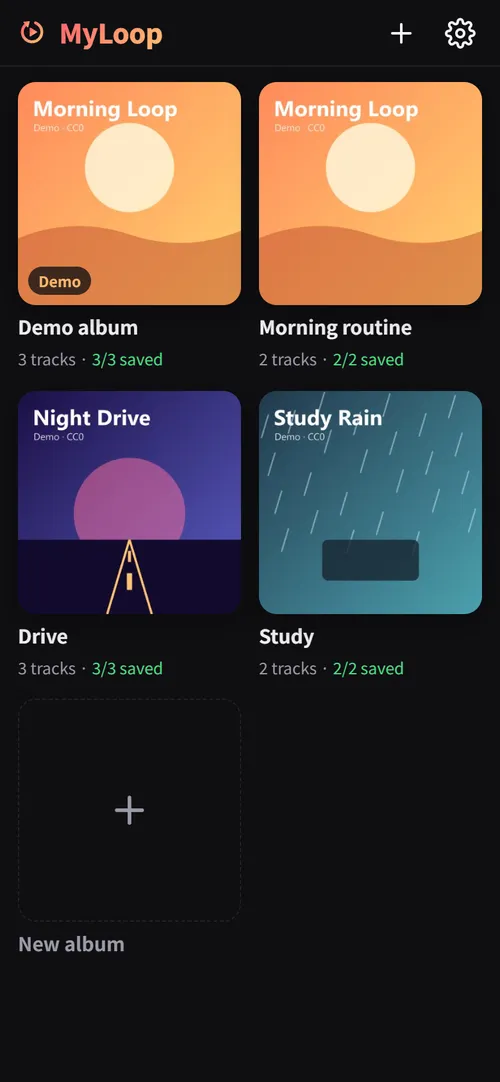
Tap Create an album on the first screen (or + at the top) and give it a name. An album is what loops — make one per purpose, like "Commute Spanish" or "Bedtime".
Want to look around first? Tap Try the demo album first. You get an album with three short original tracks that doesn't count toward the free limits.
The album's ⋯ menu renames, reorders, saves everything offline or deletes the album. The ⋯ next to a track edits its skip points, renames it, makes it the album cover or removes it.
3. Add audio
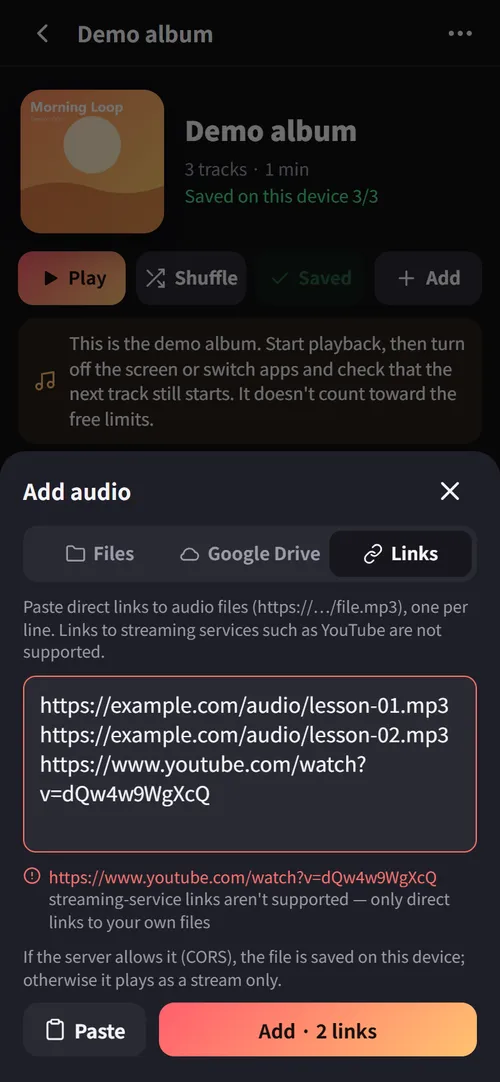
Tap + Add in an album to see three options.
Files on this device
Pick mp3, m4a, aac, flac, wav, ogg or opus files on your phone or computer — several at once, or drag them into the window on desktop. Picked files go straight into app storage, so they play offline from the start. Titles, artists and covers come from the file tags.
Google Drive
The first time, tap Connect Google account and agree. Then Choose from Drive opens Google's own picker; the audio you pick goes into the album and starts saving to this device right away. The app can only read files you picked.
Direct links
Paste addresses of audio files on the web (https://…/file.mp3), one per line. While you type, the app points out invalid addresses, tracks already in the album and unsupported links.
- If the server allows browsers to download the file (CORS), it's saved on the device and plays offline.
- If not, it's marked Stream only and plays only while online.
- Links to streaming services such as YouTube or Spotify are refused.
4. Playing
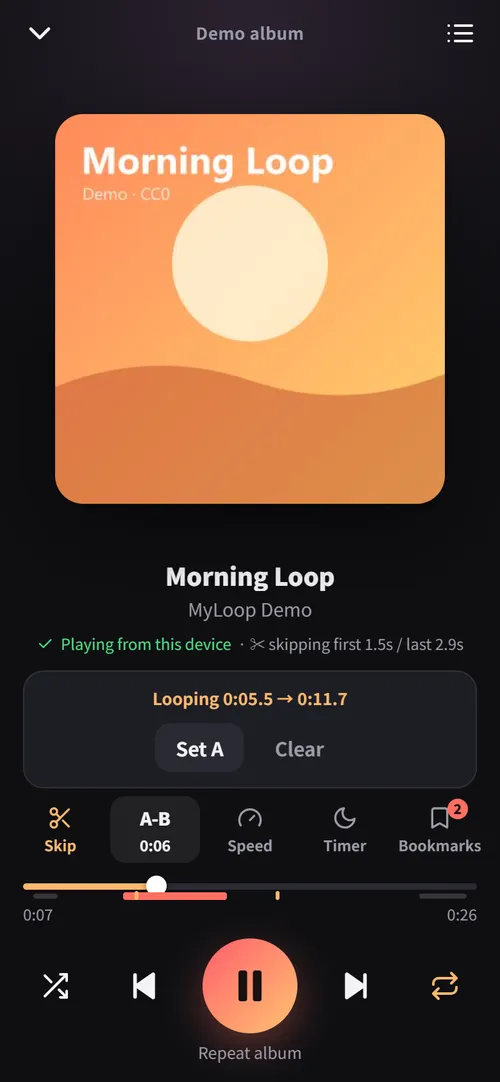
Tap Play or any track. Tap the mini player at the bottom to open the player screen.
- Repeat: the whole album repeats by default; tap the repeat button for repeat-one.
- Shuffle: mixes the order and keeps looping when the album ends.
- Queue: the list button at the top right shows the order and jumps to any track.
- Lock screen & earbuds: play/pause and previous/next work there too.
The next track is prepared while the current one plays, so there's no gap even with the screen off.
5. Skip points
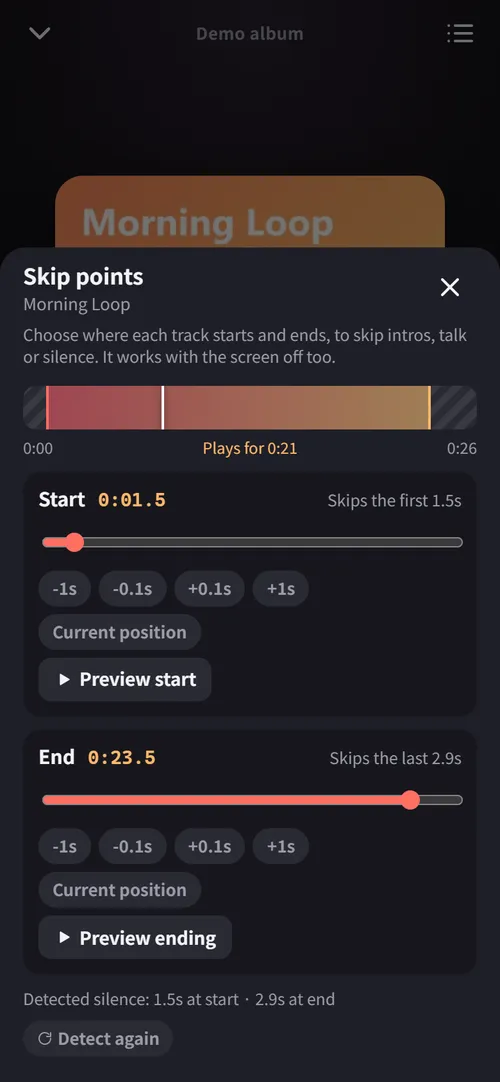
Skip what you don't want to hear in each track — course announcements, applause, noise before a recording starts. Tap ✂ Skip on the player or Edit skip points in the track menu.
- The hatched parts of the bar are skipped.
- Use the Start and End sliders to get close, then ±0.1 s / ±1 s to fine-tune.
- While that track plays, Current position sets the point to what you're hearing.
- Preview start and Preview ending check it right away; the ending preview plays through the switch to the next track.
Automatic silence skip (Pro)
When a track is saved to the device it's analyzed once, and silence at the start and end is skipped automatically. Your manual points add on top. If the detection cut too much, drag the start earlier. Files over 20 minutes aren't analyzed. Turn it off in Settings → Playback.
6. Study & audiobook tools
They're in the tool row at the bottom of the player.
| Tool | How to use it |
|---|---|
| A-B | Tap Set A where the loop should start and Set B where it should end; that part repeats until you Clear it or change tracks. |
| Speed (Pro) | 0.5× to 2×, pitch unchanged. Set a default in Settings. |
| Bookmarks | Bookmark this spot saves the position. Tap one to jump there; the pencil names it. Marks appear under the seek bar. The free version keeps 2 per track (no limit on the demo album); Pro is unlimited. |
| Timer | Stops after 15, 30, 45, 60 or 90 minutes, or at the end of the track. |
| Resume | Files longer than the set length (20 min by default) remember where you stopped and continue from there. |
| 15 s / 30 s jumps | Appear under the seek bar for tracks longer than 10 minutes. |
7. Offline storage
The mark next to each track shows its state.
- Save all on an album downloads everything at once. With "Auto-save the playing album" on, the rest of the album downloads while you listen.
- Settings → Storage shows usage, cleans up unused files and removes downloads. Files you added from this device have no other copy, so "Remove downloads" keeps them.
- Persistent storage should say "Granted" so the browser never clears data when space runs low. Installing to the home screen usually grants it.
8. Using several devices
Connect your Google account in Settings → Google Drive & sync and, with Pro, your album list syncs between devices — when the app opens, when you come back to it, and a few seconds after you edit an album.
- Synced: albums, track order and titles, skip points, bookmarks, resume positions — one file (library.json) in a hidden app folder in your Drive.
- Not synced: the audio itself. Drive and link tracks are downloaded again from the source on each device; tracks added as device files show "Missing".
- Link files: tap Link files in the notice at the top of the album and pick the same files on that device — they're matched by size and name automatically. You can also pick them one by one.
9. Pro and your license
The free version allows 1 album and 10 offline tracks (the demo album doesn't count). Pro ($4.99, one-time) unlocks unlimited storage, automatic silence skip, volume leveling, playback speed, unlimited bookmarks and device sync. A-B repeat is free.
- Tap the Free badge or Settings → Pro, then Buy. Lemon Squeezy handles the payment.
- Your license key arrives by email.
- Paste it into the Pro screen in the app and tap Activate (needs internet).
- One key activates up to 3 devices. When you switch phones, use Settings → Deactivate on this device on the old one to free its slot.
- Once activated, Pro keeps working offline.
10. Troubleshooting
Playback stops or doesn't advance with the screen off (iPhone)
- Open the app installed on the home screen, not a Safari tab.
- Start playback by tapping play yourself — iOS only continues audio the user started.
- Low Power Mode can limit background work.
- Stream-only tracks stop when the network drops. Save tracks to the device.
A link track says "Stream only"
The server hosting the file doesn't allow other sites (this app) to download it (CORS). It plays, but only online. Download the file and add it as a device file, or put it in Google Drive and add it from there to use it offline.
A track shows "Missing"
It was added as a device file on another device, or the browser's data was cleared. Tap Link files at the top of the album and pick the same file.
"Free storage limit" message
The free version saves 10 tracks offline. Tracks over the limit stream instead and no more device files can be added. Remove tracks you don't need or upgrade to Pro.
Volume leveling doesn't work on iPhone
iOS blocks web apps from changing playback volume. Leveling applies on Android and desktop only.
Google keeps disconnecting
Removing the app's access in your Google account or changing your password disconnects it. Reconnect in Settings. Tracks already saved play regardless.
License activation fails
- Key not found: paste the key from the email exactly, without spaces.
- Maximum number of devices: deactivate it in Settings on another device and try again. If you lost that device, contact us.
- Key can't be used: the key was refunded or disabled.
Running out of space
In Settings → Storage, Clean up removes files of tracks you deleted; Remove downloads deletes Drive and link downloads so you can save just the albums you need again.
Still stuck? Email [email protected] with your device and the app version (Settings → About).